Note
Access to this page requires authorization. You can try signing in or changing directories.
Access to this page requires authorization. You can try changing directories.
You can create custom actions inside Windows Terminal that give you control of how you interact with the terminal. These actions will automatically be added to the command palette.
Action formats
Actions can be structured in the following formats:
Commands without arguments
{ "command": "commandName", "id": "User.MyCommand" }
For example, this default setting uses the shortcut key Alt+F4 to close the terminal window:
{ "command": "closeWindow", "id": "User.MyCloseWindow" }
Commands with arguments
{ "command": { "action": "commandName", "argument": "value" }, "id": "User.MyCommand" }
For example, this default setting uses the shortcut key Ctrl+Shift+1 to open a new tab in the terminal based on whichever profile is listed first in your dropdown menu (typically this will open the PowerShell profile):
{ "command": { "action": "newTab", "index": 0 }, "id": "User.MyNewTabAction" }
Commands with command line arguments
{ "command": { "action": "wt", "commandline": "value" }, "keys": "modifiers+key" }
For example, this default setting uses the shortcut key Ctrl+Shift+O to use wt to open a new PowerShell tab with additional panes for Command Prompt and Ubuntu:
{
  "command":
  {
    "action": "wt",
    "commandline": "new-tab pwsh.exe ; split-pane -p \"Command Prompt\" -d C:\\ ; split-pane -p \"Ubuntu\" -H"
  },
  "keys": "ctrl+shift+o"
}
Action properties
Actions are stored in the actions array and can be constructed using the following properties.
Command
This is the command executed when the associated keys are pressed.
Property name: command
Necessity: Required
Accepts: String
Action
This adds additional functionality to certain commands.
Property name: action
Necessity: Optional
Accepts: String
Name
This sets the name that will appear in the command palette. If one isn't provided, the terminal will attempt to automatically generate a name.
Property name: name
Necessity: Optional
Accepts: String
Icon
This sets the icon that displays within the command palette.
Property name: icon
Necessity: Optional
Accepts: File location as a string, or an emoji
Note
As of Windows Terminal 1.24, icon may refer to content adjacent to the settings.json file.
ID
This sets the id of this action. If one isn't provided, the terminal will generate an ID for this action. The ID is used to refer to this action when creating keybindings.
Property name: id
Necessity: Optional
Accepts: String
Keybindings
Actions can be assigned keybindings by referring to them with their unique ID. For example, here is a possible keybindings array that assigns Alt+F4, Ctrl+Shift+1 and Ctrl+Shift+o to the actions defined above. Multiple keybinding entries may be created for the same action.
"keybindings": [
  { "keys": "alt+f4", "id": "User.MyCloseWindow" },
  { "keys": "ctrl+shift+1", "id": "User.MyNewTabAction" },
  { "keys": "ctrl+shift+o", "id": "User.MyCoolSetup"}
]
Keybinding properties
Keybindings are stored in the keybindings array and are constructed using the following properties.
Keys
This defines the key combinations used to call the command. Keys can have any number of modifiers with one key. Accepted modifiers and keys are listed below.
If the action does not have keys, it will appear in the command palette but cannot be invoked with the keyboard.
Property name: keys
Necessity: Required
Accepts: String or array[string]
ID
This is the ID of the action to be invoked when this keybinding is pressed.
Property name: id
Necessity: Required
Accepts: String
Accepted Modifiers
ctrl+, shift+, alt+, win+
Note
While the Windows key is supported as a modifier, the system reserves most Win+<key> key bindings. If the OS has reserved that key binding, the terminal will never receive that binding.
Modifier keys
| Type | Keys |
|---|---|
| Function and alphanumeric keys | f1-f24, a-z, 0-9 |
| Symbols | `, plus, -, =, [, ], \, ;, ', ,, ., / |
| Arrow keys | down, left, right, up, pagedown, pageup, pgdn, pgup, end, home |
| Action keys | tab, enter, esc, escape, space, backspace, delete, insert, app, menu |
| Numpad keys | numpad_0-numpad_9, numpad0-numpad9, numpad_add, numpad_plus, numpad_decimal, numpad_period, numpad_divide, numpad_minus, numpad_subtract, numpad_multiply |
| Browser keys | browser_back, browser_forward, browser_refresh, browser_stop, browser_search, browser_favorites, browser_home |
Note: = and plus are equivalents. The latter must not be confused with numpad_plus.
Application-level commands
Quit
This closes all open terminal windows. A confirmation dialog will appear in the current window to ensure you'd like to close all windows.
Command name: quit
Default ID:
{ "command": "quit", "id": "Terminal.Quit" }
Close window
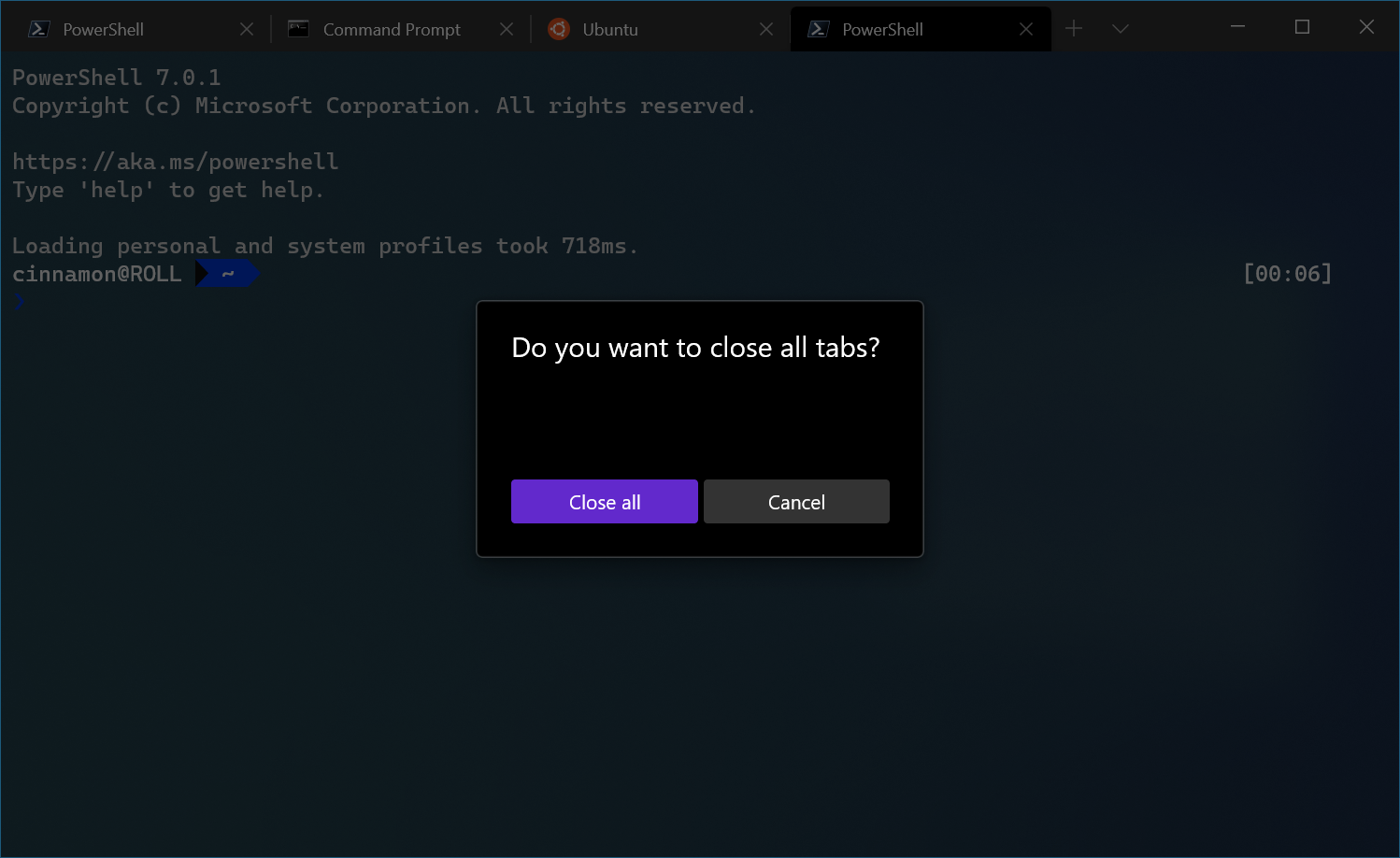
This closes the current window and all tabs within it. If confirmCloseAllTabs is set to true, a confirmation dialog will appear to ensure you'd like to close all your tabs. More information on this setting can be found on the Appearance page.
Command name: closeWindow
Default ID:
{ "command": "closeWindow", "id": "Terminal.CloseWindow" }
Default binding:
{ "keys": "alt+f4", "id": "Terminal.CloseWindow" }
Find
This opens the search dialog box. More information on search can be found on the Search page.
Command name: find
Default ID:
{ "command": "find", "id": "Terminal.FindText" }
Default binding:
{ "keys": "ctrl+shift+f", "id": "Terminal.FindText" }
Find next/previous search match
This lets you navigate through your search matches.
Command name: findMatch
Default IDs:
{ "command": { "action": "findMatch", "direction": "next" }, "id": "Terminal.FindNextMatch" },
{ "command": { "action": "findMatch", "direction": "prev" }, "id": "Terminal.FindPrevMatch" }
Parameters
| Name | Necessity | Accepts | Description |
|---|---|---|---|
direction |
Required | "next", "prev" |
The direction to navigate through search results. |
Open the dropdown
This opens the dropdown menu.
Command name: openNewTabDropdown
Default ID:
{ "command": "openNewTabDropdown", "id": "Terminal.OpenNewTabDropdown" }
Default binding:
{ "keys": "ctrl+shift+space", "id": "Terminal.OpenNewTabDropdown" }
Open settings files
This opens either the settings UI, custom settings file (settings.json), or default settings file (defaults.json), depending on the target field.
Without the target field, the custom settings file will be opened.
Command name: openSettings
Default IDs:
{ "command": { "action": "openSettings", "target": "settingsUI" }, "id": "Terminal.OpenSettingsUI" },
{ "command": { "action": "openSettings", "target": "settingsFile" }, "id": "Terminal.OpenSettingsFile" },
{ "command": { "action": "openSettings", "target": "defaultsFile" }, "keys": "Terminal.OpenDefaultSettingsFile" }
Default bindings:
{ "keys": "ctrl+,", "id": "Terminal.OpenSettingsUI" },
{ "keys": "ctrl+shift+,", "id": "Terminal.OpenSettingsFile" },
{ "keys": "ctrl+alt+,", "id": "Terminal.OpenDefaultSettingsFile" }
Parameters
| Name | Necessity | Accepts | Description |
|---|---|---|---|
target |
Optional | "settingsFile", "defaultsFile", "settingsUI", "allFiles" |
The settings file to open. |
Open system menu
Opens the system menu at the top left corner of the window.
Command name: openSystemMenu
Default ID:
{ "command": "openSystemMenu", "id": "Terminal.OpenSystemMenu" }
Default binding:
{ "keys": "alt+space", "id": "Terminal.OpenSystemMenu" }
Toggle full screen
This allows you to switch between full screen and default window sizes.
Command name: toggleFullscreen
Default ID
{ "command": "toggleFullscreen", "id": "Terminal.ToggleFullscreen" }
Default bindings:
{ "keys": "alt+enter", "id": "Terminal.ToggleFullscreen" },
{ "keys": "f11", "id": "Terminal.ToggleFullscreen" }
Toggle focus mode
This allows you to enter "focus mode", which hides the tabs and title bar.
Command name: toggleFocusMode
Default ID:
{ "command": "toggleFocusMode", "id": "Terminal.ToggleFocusMode" }
Toggle always on top mode
This allows you toggle the "always on top" state of the window. When in "always on top" mode, the window will appear on top of all other non-topmost windows.
Command name: toggleAlwaysOnTop
Default ID:
{ "command": "toggleAlwaysOnTop", "id": "Terminal.ToggleAlwaysOnTop" }
Send input
Send arbitrary text input to the shell.
As an example the input "text\n" will write "text" followed by a newline to the shell.
ANSI escape sequences may be used, but escape codes like \x1b must be written as \u001b.
For instance "\u001b[A" will behave as if the up arrow button had been pressed.
Command name: sendInput
Default binding:
This command is not currently bound in the default settings.
{ "command": { "action": "sendInput", "input": "\u001b[A" } }
Parameters
| Name | Necessity | Accepts | Description |
|---|---|---|---|
input |
Required | String | The text input to feed into the shell. |
Tab management commands
Close tab
This closes the tab at a given index. If no index is provided, use the focused tab's index.
Command name: closeTab
Parameters
| Name | Necessity | Accepts | Description |
|---|---|---|---|
index |
Optional | Integer | Position of the tab to close. |
Close all other tabs
This closes all tabs except for the one at an index. If no index is provided, use the focused tab's index.
Command name: closeOtherTabs
Default ID:
{ "command": "closeOtherTabs", "id": "Terminal.CloseOtherTabs" }
Parameters
| Name | Necessity | Accepts | Description |
|---|---|---|---|
index |
Optional | Integer | Position of the tab to be kept open. |
Close tabs after index
This closes the tabs following the tab at an index. If no index is provided, use the focused tab's index.
Command name: closeTabsAfter
Default ID:
{ "command": "closeTabsAfter", "id": "Terminal.CloseTabsAfter" }
Parameters
| Name | Necessity | Accepts | Description |
|---|---|---|---|
index |
Optional | Integer | Position of the last tab to be kept open. |
Duplicate tab
This makes a copy of the current tab's profile and directory and opens it. This does not include modified/added ENV VARIABLES.
Command name: duplicateTab
Default ID:
{ "command": "duplicateTab", "id": "Terminal.DuplicateTab" }
Default binding:
{ "keys": "ctrl+shift+d", "id": "Terminal.DuplicateTab" }
New tab
This creates a new tab. Without any arguments, this will open the default profile in a new tab. If an index is not specified, the default profile's equivalent setting will be used. If the index doesn't map to a profile, the keys are passed directly to the terminal (or ignored if no keys were used to invoke the action).
Command name: newTab
Default IDs:
{ "command": "newTab", "id": "Terminal.OpenNewTab" },
{ "command": { "action": "newTab", "index": 0 }, "id": "Terminal.OpenNewTabProfile0" },
{ "command": { "action": "newTab", "index": 1 }, "id": "Terminal.OpenNewTabProfile1" },
{ "command": { "action": "newTab", "index": 2 }, "id": "Terminal.OpenNewTabProfile2" },
{ "command": { "action": "newTab", "index": 3 }, "id": "Terminal.OpenNewTabProfile3" },
{ "command": { "action": "newTab", "index": 4 }, "id": "Terminal.OpenNewTabProfile4" },
{ "command": { "action": "newTab", "index": 5 }, "id": "Terminal.OpenNewTabProfile5" },
{ "command": { "action": "newTab", "index": 6 }, "id": "Terminal.OpenNewTabProfile6" },
{ "command": { "action": "newTab", "index": 7 }, "id": "Terminal.OpenNewTabProfile7" },
{ "command": { "action": "newTab", "index": 8 }, "id": "Terminal.OpenNewTabProfile8" }
Default bindings:
{ "keys": "ctrl+shift+t", "id": "Terminal.OpenNewTab" },
{ "keys": "ctrl+shift+1", "id": "Terminal.OpenNewTabProfile0" },
{ "keys": "ctrl+shift+2", "id": "Terminal.OpenNewTabProfile1" },
{ "keys": "ctrl+shift+3", "id": "Terminal.OpenNewTabProfile2" },
{ "keys": "ctrl+shift+4", "id": "Terminal.OpenNewTabProfile3" },
{ "keys": "ctrl+shift+5", "id": "Terminal.OpenNewTabProfile4" },
{ "keys": "ctrl+shift+6", "id": "Terminal.OpenNewTabProfile5" },
{ "keys": "ctrl+shift+7", "id": "Terminal.OpenNewTabProfile6" },
{ "keys": "ctrl+shift+8", "id": "Terminal.OpenNewTabProfile7" },
{ "keys": "ctrl+shift+9", "id": "Terminal.OpenNewTabProfile8" }
Parameters
| Name | Necessity | Accepts | Description |
|---|---|---|---|
commandline |
Optional | Executable file name as a string | Executable run within the tab. |
startingDirectory |
Optional | Folder location as a string | Directory in which the tab will open. |
elevate |
Optional | true, false, null |
Overrides the elevate property of the profile. When omitted, this action will behave according to the profile's elevate setting. When set to true or false, this action will behave as though the profile was set with "elevate": true or "elevate": false (respectively). |
tabTitle |
Optional | String | Title of the new tab. |
index |
Optional | Integer | Profile that will open based on its position in the dropdown (starting at 0). |
profile |
Optional | Profile's name or GUID as a string | Profile that will open based on its GUID or name. |
colorScheme |
Optional | The name of a color scheme as a string | The scheme to use instead of the profile's set colorScheme |
suppressApplicationTitle |
Optional | true, false |
When set to false, applications can change the tab title by sending title change messages. When set to true, these messages are suppressed. If not provided, the behavior is inherited from the profile's settings. In order to enter a new tab title and have that title persist, this must be set to true. |
Open next tab
This opens the tab to the right of the current one.
Command name: nextTab
Default ID:
{ "command": "nextTab", "id": "Terminal.NextTab" }
Default binding:
{ "keys": "ctrl+tab", "id": "Terminal.NextTab" }
Parameters
| Name | Necessity | Accepts | Description |
|---|---|---|---|
tabSwitcherMode |
Optional | "mru", "inOrder", "disabled" |
Move to the next tab using "tabSwitcherMode". If no mode is provided, use the globally defined one. |
Open previous tab
This opens the tab to the left of the current one.
Command name: prevTab
Default ID:
{ "command": "prevTab", "id": "Terminal.PrevTab" }
Default binding:
{ "keys": "ctrl+shift+tab", "id": "Terminal.PrevTab" }
Parameters
| Name | Necessity | Accepts | Description |
|---|---|---|---|
tabSwitcherMode |
Optional | "mru", "inOrder", "disabled" |
Move to the previous tab using "tabSwitcherMode". If no mode is provided, use the globally defined one. |
Tab search
This opens the tab search box.
Command name: tabSearch
Default binding:
This command is not currently bound in the default settings.
{"command": "tabSearch"}

Open a specific tab
This opens a specific tab depending on the index.
Command name: switchToTab
Default IDs:
{ "command": { "action": "switchToTab", "index": 0 }, "id": "Terminal.SwitchToTab0" },
{ "command": { "action": "switchToTab", "index": 1 }, "id": "Terminal.SwitchToTab1" },
{ "command": { "action": "switchToTab", "index": 2 }, "id": "Terminal.SwitchToTab2" },
{ "command": { "action": "switchToTab", "index": 3 }, "id": "Terminal.SwitchToTab3" },
{ "command": { "action": "switchToTab", "index": 4 }, "id": "Terminal.SwitchToTab4" },
{ "command": { "action": "switchToTab", "index": 5 }, "id": "Terminal.SwitchToTab5" },
{ "command": { "action": "switchToTab", "index": 6 }, "id": "Terminal.SwitchToTab6" },
{ "command": { "action": "switchToTab", "index": 7 }, "id": "Terminal.SwitchToTab7" }
Default bindings:
{ "keys": "ctrl+alt+1", "id": "Terminal.SwitchToTab0" },
{ "keys": "ctrl+alt+2", "id": "Terminal.SwitchToTab1" },
{ "keys": "ctrl+alt+3", "id": "Terminal.SwitchToTab2" },
{ "keys": "ctrl+alt+4", "id": "Terminal.SwitchToTab3" },
{ "keys": "ctrl+alt+5", "id": "Terminal.SwitchToTab4" },
{ "keys": "ctrl+alt+6", "id": "Terminal.SwitchToTab5" },
{ "keys": "ctrl+alt+7", "id": "Terminal.SwitchToTab6" },
{ "keys": "ctrl+alt+8", "id": "Terminal.SwitchToTab7" }
Parameters
| Name | Necessity | Accepts | Description |
|---|---|---|---|
index |
Required | Integer | Tab that will open based on its position in the tab bar (starting at 0). |
Rename tab
This command can be used to rename a tab to a specific string.
Command name: renameTab
Default binding:
This command is not currently bound in the default settings.
// Rename a tab to "Foo"
{ "command": { "action": "renameTab", "title": "Foo" } }

// Reset the tab's name
{ "command": { "action": "renameTab", "title": null } }
Parameters
| Name | Necessity | Accepts | Description |
|---|---|---|---|
title |
Optional | String | The new title to use for this tab. If omitted, this command will revert the tab title back to its original value. |
Open tab rename text box
This command changes the tab title into a text field that lets you edit the title for the current tab. Clearing the text field will reset the tab title back to the default for the current shell instance.
Command name: openTabRenamer
Default ID:
{ "command": "openTabRenamer", "id": "Terminal.OpenTabRenamer" }
Change tab color
This command can be used to change the color of a tab to a specific value.
Command name: setTabColor
Default binding:
This command is not currently bound in the default settings.
// Change the tab's color to a bright magenta
{ "command": { "action": "setTabColor", "color": "#ff00ff" } }

// Reset the tab's color
{ "command": { "action": "setTabColor", "color": null } }
Parameters
| Name | Necessity | Accepts | Description |
|---|---|---|---|
color |
Optional | String, in hex format: "#rgb" or "#rrggbb" |
The new color to use for this tab. If omitted, this command will revert the tab's color back to its original value. |
Open tab color picker
This command can be used to open the color picker for the active tab. The color picker can be used to set a color for the tab at runtime.
Command name: openTabColorPicker
Default ID:
{ "command": "openTabColorPicker", "id": "Terminal.OpenTabColorPicker" }
Move tab
This command moves the tab "backward" and "forward", which is equivalent to "left" and "right" in left-to-right UI.
Command name: moveTab
Default IDs:
// Move tab backward (left in LTR)
{ "command": { "action": "moveTab", "direction": "backward" }, "id": "Terminal.MoveTabBackward" }

// Move tab forward (right in LTR)
{ "command": { "action": "moveTab", "direction": "forward" }, "id": "Terminal.MoveTabForward" }
Parameters
| Name | Necessity | Accepts | Description |
|---|---|---|---|
direction |
Required | "backward", "forward" |
Direction in which the tab will move. |
window |
Optional | A window ID | See below |
window is optional, and follows the same format as the --window-id argument to the wt.exe command line. If it's omitted, then this will move the tab within the current window. If provided, it may either be the integer ID of a window, or the name of a window. It also accepts the following reserved values:
"new"or-1: Always run this command in a new window"last"or0: Always run this command in the most recently used window
If no window exists with the given window ID, then a new window will be created with that id/name.
Broadcast input
This command will toggle "broadcast mode" for a pane. When broadcast mode is enabled, all input sent to the pane will be sent to all panes in the same tab. This is useful for sending the same input to multiple panes at once.
As with any action, you can also invoke "broadcast mode" by search for "Toggle broadcast input to all panes" in the Command palette.
Command name: toggleBroadcastInput
Default ID:
{ "command": "toggleBroadcastInput", "id": "Terminal.ToggleBroadcastInput" }

Open context menu
This command will open the "right-click" context menu for the active pane. This menu has context-relevant actions for managing panes, copying and pasting, and more. This action does not require the experimental.rightClickContextMenu setting to be enabled.
Command name: showContextMenu
Default ID:
{ "command": "showContextMenu", "id": "Terminal.ShowContextMenu" }
Open about dialog
This command will open the about dialog for the terminal. This dialog contains information about the terminal, including the version number, the license, and more.
Command name: openAbout
Default ID:
{ "command": "openAbout", "id": "Terminal.OpenAboutDialog" }
Important
This feature is only available in Windows Terminal Preview.
Search the web
Attempts to open a browser window with a search for the selected text. This does nothing if there's no text selected. If the queryUrl parameter is not provided, the searchWebDefaultQueryUrl setting will be used instead. If the queryUrl parameter is provided, a %s in the string will be replaced by the selected text.
Command name: